
5. Quick Capture
Another way to use PinSlip: a floating window on your screen, without opening the main window.
Great for: fleeting thoughts / copy-paste / webpage screenshots / collecting a day's ideas.
This chapter covers the shortcut, the floating window's behavior, save-target choices, and the browser extension.
5.1 Opening Quick Capture
Press the global shortcut:
System | Shortcut |
|---|---|
Windows / Linux |
|
macOS |
|
Effect:
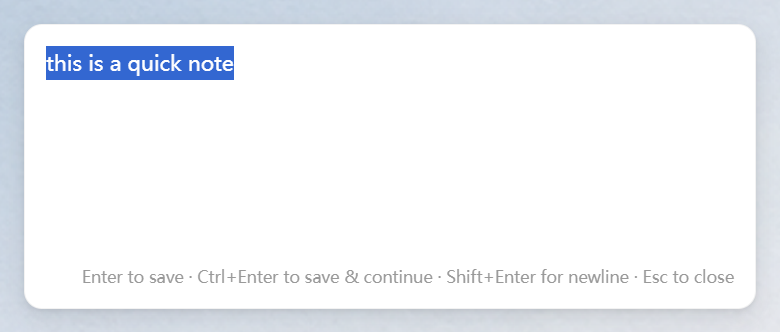
A small floating window pops up
Borderless / always on top / not resizable
The cursor lands directly in the editor
5.2 Three Ways to Save
Action | Behavior |
|---|---|
| Save and close |
| Save but keep the window open — fire off the next note immediately |
| If there's content → save then close; if empty → just close |
Lose focus | Switch to another window → auto-save and close |
Clipboard Bring-In
When Quick Capture opens, PinSlip reads the plain text from your clipboard, pastes it in, and selects it all.
For example:
You copy some web content → Quick Capture brings it in and selects it →
Ctrl+Enterto capture it.You copy some code → Quick Capture brings it in → tweak, then press Enter.
You can turn this off in Settings → Quick Capture → Clipboard bring-in.
Pasting Images
Ctrl+V(macOSCmd+V) to paste an image directly.PinSlip auto-uploads it to
attachments/and shows a thumbnail strip beneath the editor.Paste multiple times to capture multiple images.
5.3 Save Target (Important)
Settings → Quick Capture → Save target decides where Quick Capture notes land:
Mode A: note (default)
Each thought becomes its own note, all stored in inbox/:
inbox/
  ├── one-line-thought-20260731-1502-abcd.md
  ├── idea-20260731-1505-efgh.md
  └── task-A-20260731-1509-ijkl.md
Pros: each item is independent — easy to move, tag, or group later.
Cons: inbox fills up fast if you have a lot of quick thoughts.
Mode B: daily (one note per day)
All thoughts get appended to a single note named "Quick Capture YYYY-MM-DD", with timestamped entries:
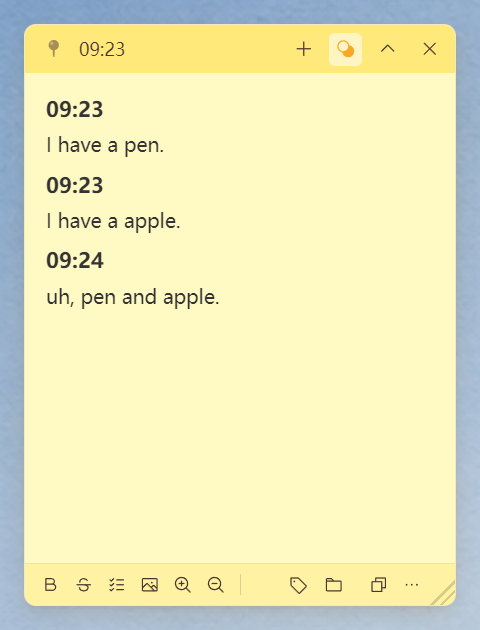
# Quick Capture 2026-07-31

### 14:02
Something I just thought of

### 14:05
Idea: split task X into two steps

### 14:09
Remind myself to reply to the client
New timestamps are appended to today's note; opening the window the next day creates a new note automatically.
Good for a "tidy up in the evening" workflow.
5.4 inbox Is a Special Status
Quick Capture notes land in
inbox/(flat — no subfolders).They cluster at the top of the main window's List view.
Move one to any subfolder under
notes/and it loses its inbox status (it won't be mixed back in).
That means:
Quick Capture is not a permanent home.
It's a temporary holding area for things you'll organize later.
Once organized, the note enters the folder structure you've designed.
5.5 Browser Extension (Chrome / Firefox)
The store listing is being prepared; for now, side-load
release/pinslip-extension-*.zipmanually.
Side-load steps: unzip the file → browser extensions page → enable Developer mode → Load unpacked.
Once the extension is installed, you can clip web pages directly into PinSlip:
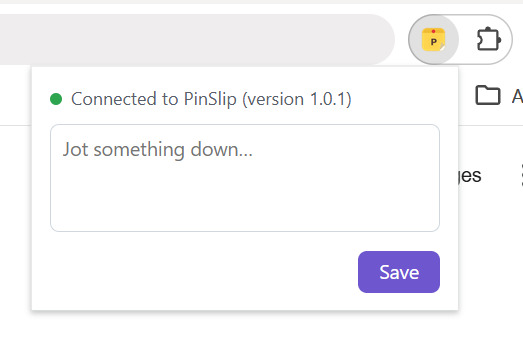
Popup Quick Capture
Click the extension icon in the toolbar → a small yellow-themed window pops up.
Title and URL are auto-filled (from the current page).
The clipboard text is auto-prefilled.
Behavior is identical to the Quick Capture floating window.
Context Menu
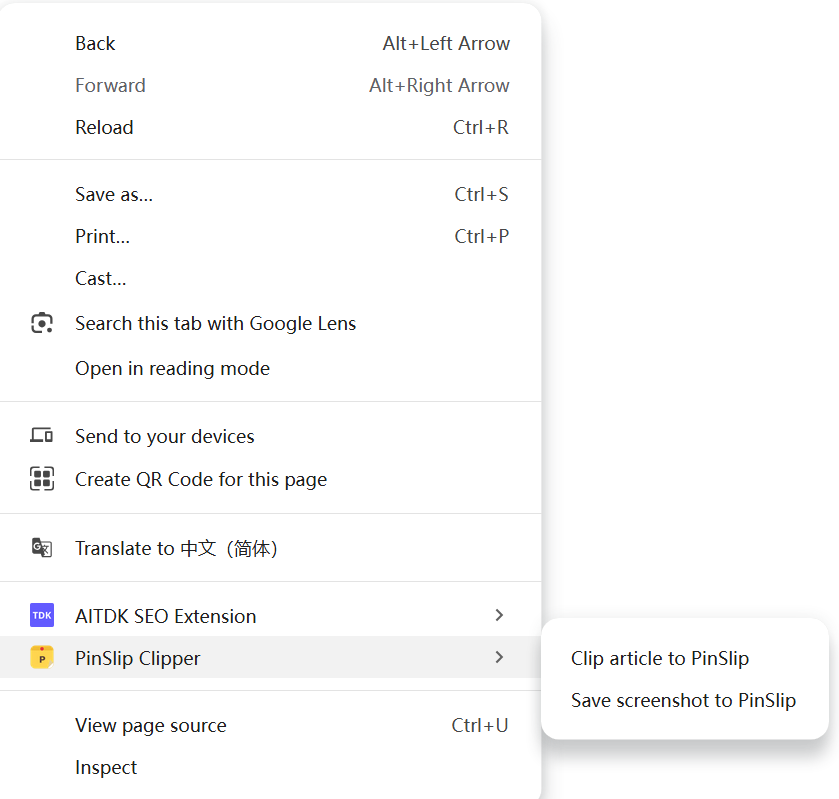
Right-click anywhere on a page and you'll see:
Menu item | Action |
|---|---|
Save selection | Saves the selected text as a note, auto-tagged with title + URL |
Save link | Saves the link URL as a note |
Clip article | Converts the page's main content to Markdown and saves it as a note |
Save page screenshot |
|
A green ✓ badge on success; a red ✗ badge on failure, which opens the options page to guide you.
Options Page
Port setting: default
17639(useschrome.storage.syncto sync settings across devices).Reconnect probe: pings the desktop service to verify the connection.
PinSlip desktop uses a random port by default, which may not match 17639 → if the first connection fails, change the port to whatever's in
mcp.json.
Service Discovery
The extension reads the port from
chrome.storage.It connects directly to
127.0.0.1:<port>/api/notes/quick.Shares the same port as the desktop MCP (
/mcpand/apiare served from the same process).
5.6 Classic Combos: Quick Capture + Browser Extension
Scenario | Action |
|---|---|
You spot a sentence you like | Select it → right-click → Save selection |
You want to keep an entire article | Right-click → Clip article |
You want a screenshot of the whole page | Right-click → Save page screenshot |
An idea hits you out of nowhere |
|
You want to annotate web content fast | Toolbar → popup → edit → |