
4. Note Groups
This is what sets PinSlip apart from Windows Sticky Notes, Apple Stickies, or macOS Notes:
stack related notes into a squad — move them together, collapse them together, collapse them all at once.
We call it a Pin Group.
4.1 What a Group Is
A group is a collection of pinned notes:
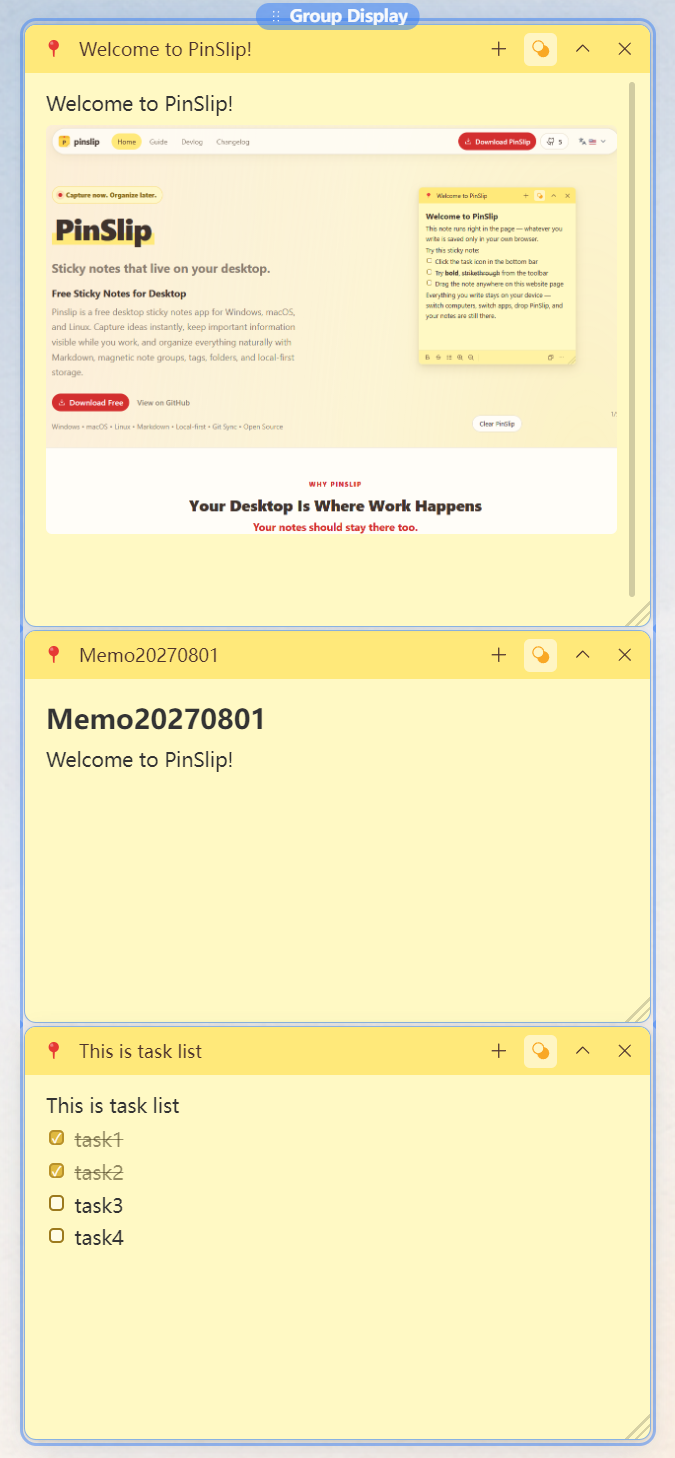
Members stack left-aligned, vertically
A highlighted outline shows which notes belong together
A centered pill-shaped handle sits on top (the group's identifier and control center)
Drag the handle = move the whole group
Collapse one = the notes beneath slide up to fill the gap
All members share the width of the widest member (only grows, never shrinks)
4.2 Creating a Group
The simplest path: drag one pinned note onto another; when both show a blue border, release.
Steps:
  1. Drag note A on top of note B
  2. Both notes light up with a blue border
  3. Release → the two notes become a group
Visual changes:
Members align into a vertical stack
A centered pill handle appears at the top, with a blue highlight outline around the group
Only pinned notes can form a group. Unpinned notes cannot join a group.
4.3 Adding a Note to an Existing Group
Drag a free note over any group member so they overlap by ≥ 50%, release, and it's inserted directly below the note it landed on.
Example: the group has [A, B, C]
  Drag D so it overlaps B by half → release → it becomes [A, B, D, C]
No modifier keys required — drag distance alone decides what happens.
4.4 Drag the Handle: Move the Whole Group
A blue pill sits in the top center of the group:
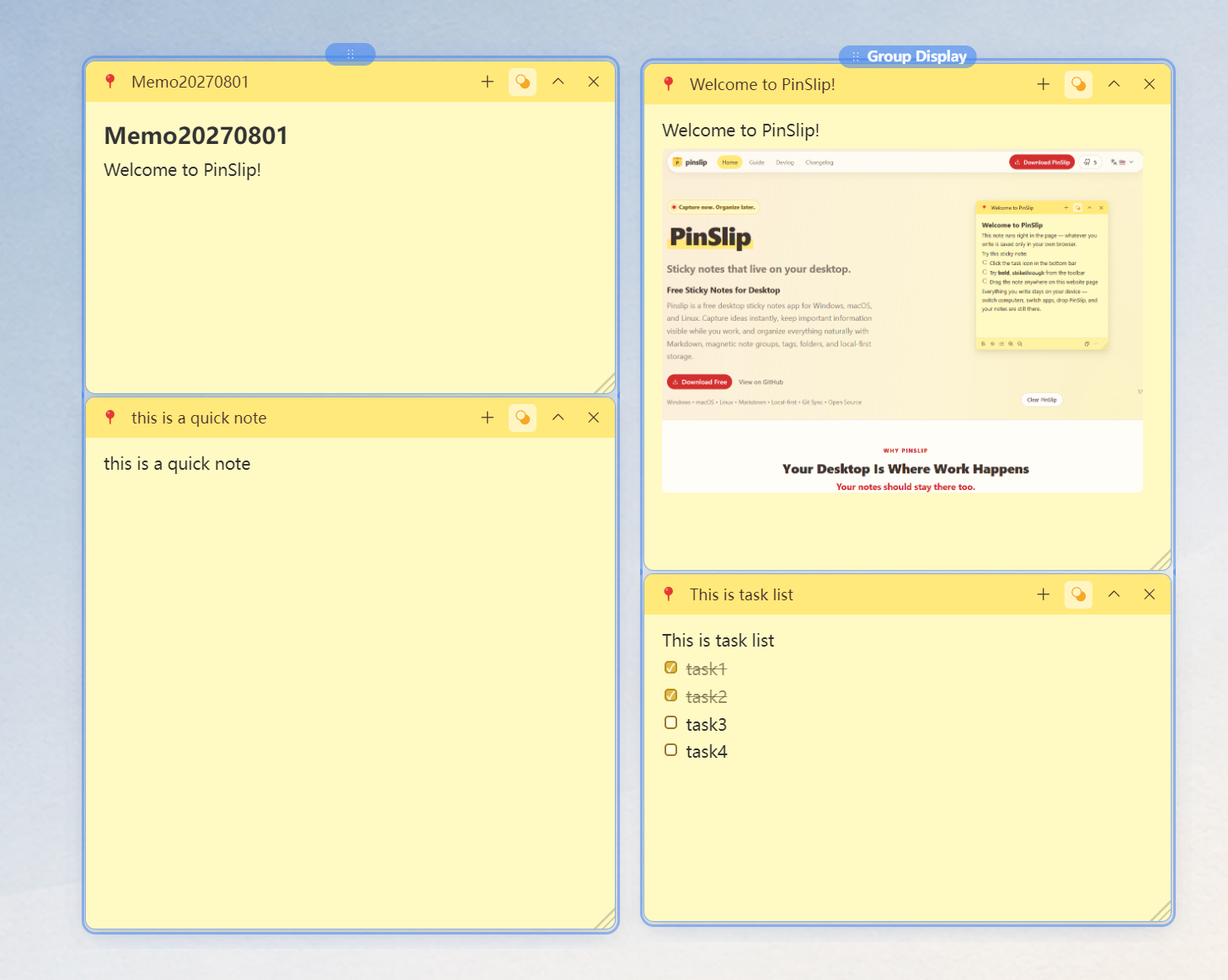
Unnamed group: a 40 px small dot.
Named group: shows the group name.
Drag
Press and drag the pill = move the whole group.
On release, the group's bounding box snaps to the screen edges (the group won't straddle the screen edge).
Rename
Double-click the pill → edit inline.
Enter to confirm / Esc to cancel.
Up to 30 characters.
Disband
Right-click the pill → action menu: Disband this Group.
Members scatter back to their original positions (no realignment — they stay where they were).
4.5 Coupled Behavior: Collapse / Expand / Resize
All members of a group react in sync:
Action | Effect |
|---|---|
Collapse one note in the group | The notes beneath it slide up to close the gap |
Expand one note in the group | The notes beneath it move down to make room |
Widen any member | The whole group adopts the widest member's width |
Narrow any member | The note snaps back to the widest member's width (never squashed — content stays readable) |
The animations run at a synchronized tempo, so the group feels like a coordinated stack of paper.
4.6 Leaving a Group
Pick any of these:
Drag the note out of the group → release → it leaves.
Unpin the note → it leaves the group immediately.
Close the note directly → it leaves the group.
Right-click the handle → Disband this Group (every member scatters).