
6. Sync (Git Sync)
Want to use the same notes on multiple devices? Turn on Git sync.
Sync via your own Git repository (GitHub / GitLab / cnb / etc.) with automatic commit + pull + push.
Best suited for technical users (the same crowd as Obsidian Git). Consumer-grade cloud sync is on the roadmap.
6.1 What It Is
Git sync in PinSlip is an optional extra feature:
How it works: PinSlip keeps a git repository in your vault directory and periodically runs commit + pull + push.
Debounce: a 3-minute idle timer prevents commits while you're still typing.
Conflict resolution: diff3 three-way merge — different paragraphs merge automatically; same-line conflicts get standard conflict markers.
Under the hood: implemented in the Go service with go-git, with no local git executable required.
Off by default — enable it manually under Settings → Git Sync.
6.2 Setup Flow
Preparation
Create a new empty repository on GitHub / GitLab / cnb / etc. (an empty repo without README/license is recommended).
Create a write-enabled Personal Access Token (PAT):
GitHub:
Settings → Developer settings → Personal access tokens → Fine-grained tokensSelect
Contents: Read and writeCopy the token (shown only once)
Configure in PinSlip
Settings → Git Sync → fill in:
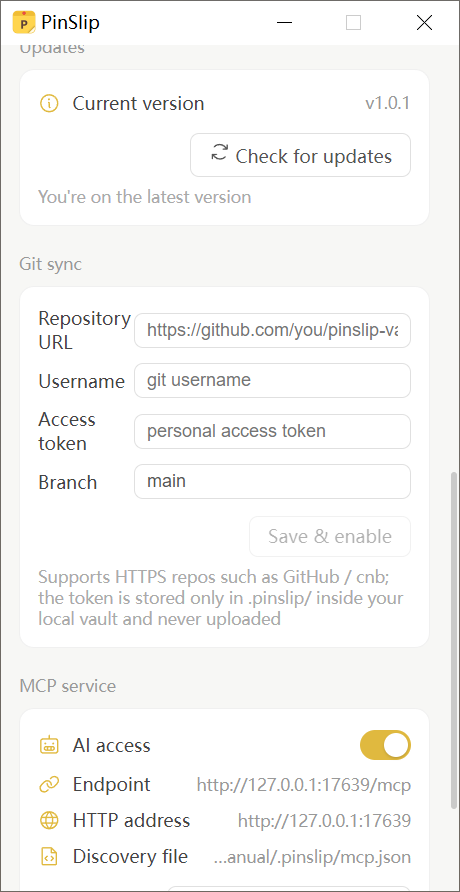
Field | Example |
|---|---|
Repository URL |
|
Username |
|
Token |
|
Branch | Default |
Once saved, PinSlip auto-initializes the local repo, sets the remote, makes the first commit, and pushes.
Credential Storage
Stored in
<vault>/.pinslip/git-sync.json<vault>/.pinslip/is in.gitignore, so your token will never be pushed to the remote.Leaving the token field blank in the UI = no change to the saved value.
6.3 Automatic Sync
Sync Loop
Change → wait 3 minutes of idle → auto-commit
  → fetch + merge
  → push
commit message:
sync YYYY-MM-DD HH:mm (n files)Push interval: default 10 minutes (configurable from 1 to 1440 minutes in Settings).
A Sync now button lets you trigger sync manually.
The app makes a best-effort push in the 5-second window before exiting.
Failure Handling
Network / auth failures → exponential backoff: 1 minute → 5 minutes → 15 minutes.
The status panel shows
lastErrorto help you debug.
What Gets Synced
Synced | Not synced |
|---|---|
|
|
|
|
|
6.4 Multi-Device Sync
Adding a New Device
Install PinSlip on the new device.
Pick a vault directory (it should be empty).
Settings → Git Sync → fill in the same repo + token.
PinSlip clones automatically → rebuilds the index → all notes appear.
Multi-User Collaboration
PinSlip doesn't lock files:
Multiple people editing the same vault at once → last-writer-wins is a real risk.
We recommend branches + PRs.
Sync Status
The Git Sync panel in the settings drawer shows:
Last sync time
Pending pushes: n
Error message (if any)
6.5 Conflict Resolution
One of the most important details of Git sync.
How Conflicts Happen
Two machines modify the same note at the same time.
A clean merge is impossible on pull → PinSlip writes conflict markers.
Three Cases
1. Different Paragraphs — Auto Merge (Most Common)
You added a line to section A
Someone else edited section B

→ Auto-merged silently; you won't be bothered
2. Same-Line Conflict (Less Common)
PinSlip writes standard git conflict markers:
<<<<<<< HEAD
The line I just added
=======
The line someone else added
>>>>>>> origin/main
The title-derivation logic skips marker lines → filenames stay clean.
A prominent "Conflict pending" badge appears at the top of the note in the main list.
API responses return
conflicted: true.
3. Binary Conflict (Images)
PinSlip keeps both versions:
The remote file keeps its original name.
The local file is renamed
name-conflict-<timestamp>.ext.
Resolving a Conflict in a Note
Open the conflicted note → the editor switches to an amber conflict banner:
A monospaced textarea showing the raw text (no Markdown rendering)
Use all local button — strips markers, keeps the local version
Use all remote button — strips markers, keeps the remote version
Save resolution — manual save (no autosave, so you decide when to commit)
Once saved, the markers disappear and the editor switches back to normal Markdown mode.
External Change Awareness
When an external editor (Obsidian / VS Code) modifies a file on disk, PinSlip's watcher notices.
You're not editing → auto-reload + "synced" toast.
You're editing (with changes) → a banner appears: "Load latest / Keep mine" so you choose.
This is the safety net for two-way sync: machines don't trample each other.
6.6 Common Issues
Symptom | What to check |
|---|---|
Auth failure | Check whether the token expired, whether the repo URL ends with |
Sync is stuck | Check |
Repeated sync failures | Does the repo URL end with |
Want to disable | Settings → Git Sync → Disable (keeps the |