
3. Organizing Notes
Once you have a lot of notes, you need to find them and keep them sorted.
This chapter covers how PinSlip helps you stay organized: search / folders / tags, plus the three views for browsing and managing notes, and the recycle bin.
3.1 Search
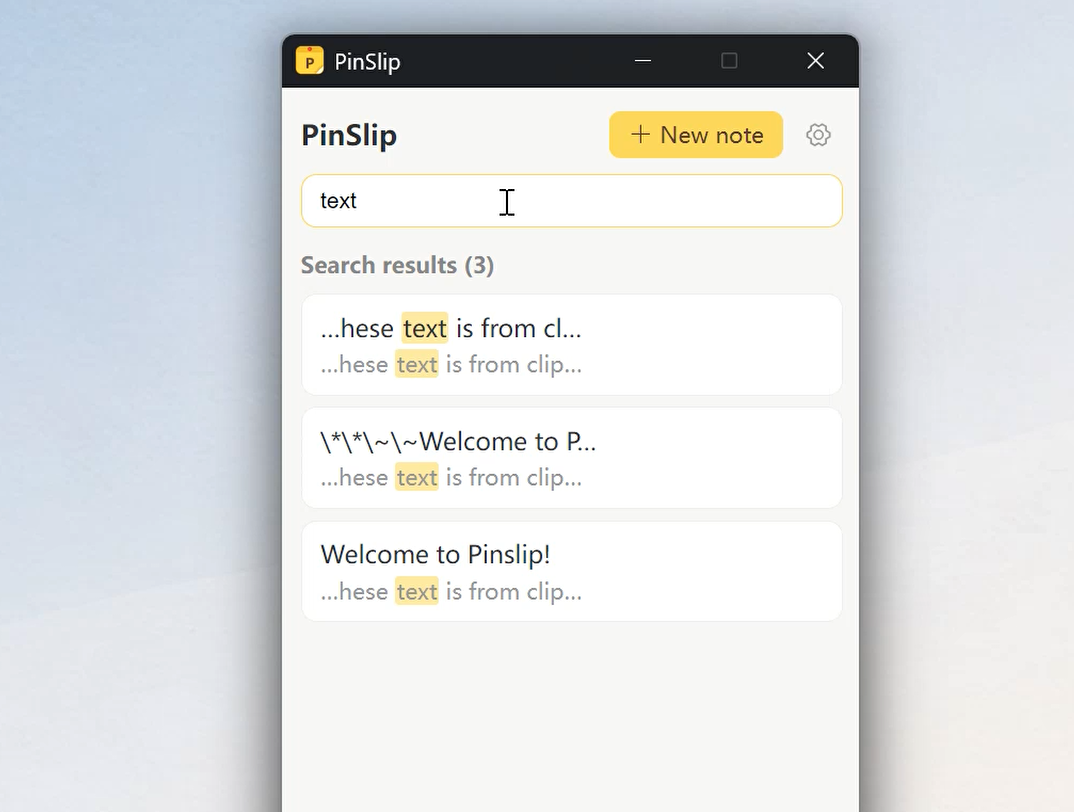
PinSlip searches titles, tags, and bodies — you can always find a note.
How to Use It
Search starts as you type
Matches titles, tags, and body text
Hits are highlighted in bright yellow
3.2 Tags
Notes can carry multiple tags.
Adding Tags to a Note
Open the note and put the cursor in it.
Click 🏷 in the bottom toolbar.
The tag panel appears:
Type a name → press Enter to add
Click × next to a tag to remove it
You can also click + to add
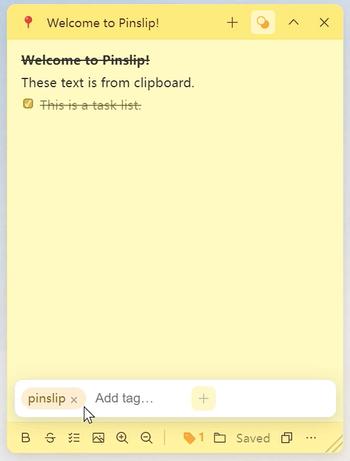
When a note has tags, the 🏷 icon turns solid and shows the count.
Tag View
Switch the middle tab of the main window to Tags:
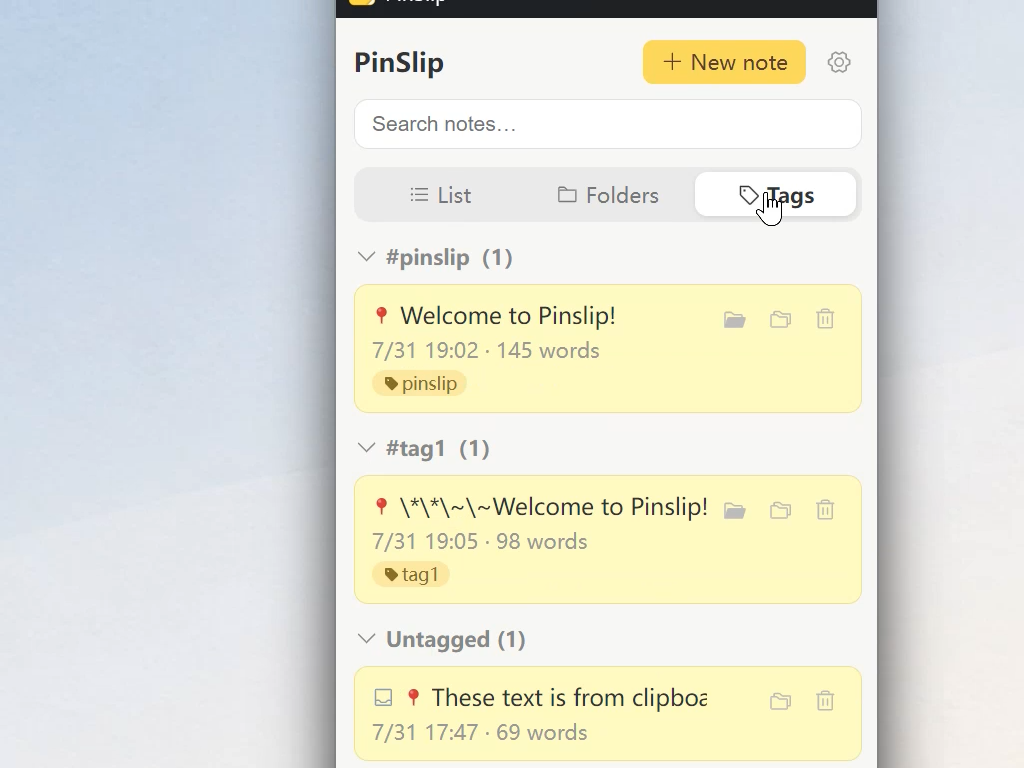
Sorted by tag frequency (most-used first)
Click a group title to collapse / expand that tag's notes
Notes with no tags land in the last group, "Untagged"
3.3 Folders
Folders are physical directories under notes/. Nesting is unlimited.
Choosing a Folder for a Note
Open the note.
Click 📁 in the bottom toolbar.
The panel shows the current location; you can Open Folder or Move to Another Folder.
Once you have many folders, a "search folder" filter appears (automatically once you have more than 5 folders).
Folder View
Switch the middle tab of the main window to Folders:
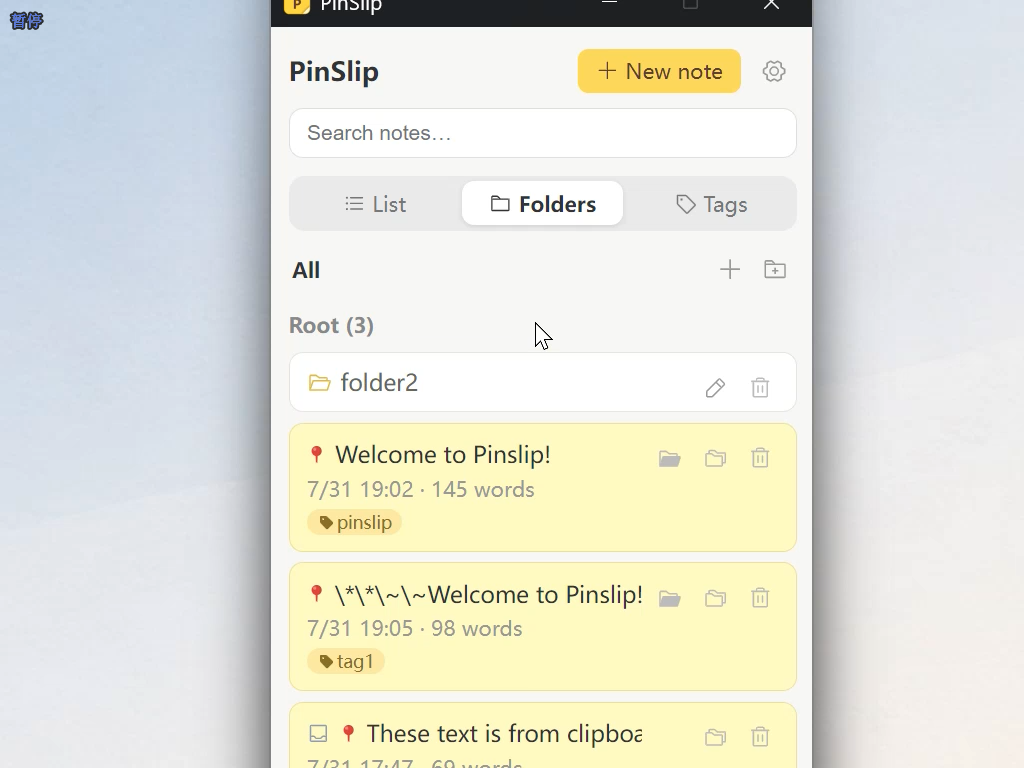
Tree-style browsing
Breadcrumb navigation (collapses to
…for long paths)Right of the current directory:
+ Create a note in the current directory
📁+ Create a subfolder
Folder Operations
Rename: click the pencil icon at the end of the folder row, edit inline.
Delete: click the trash icon at the end of the folder row.
Empty folders delete directly.
Non-empty folders offer two choices:
Move the notes up to the root (keeping them)
Send all notes to the recycle bin for later recovery.
Moving a Note
Click the 📂 button on a list item → choose a target file in the popup (with a filter).
3.4 Views
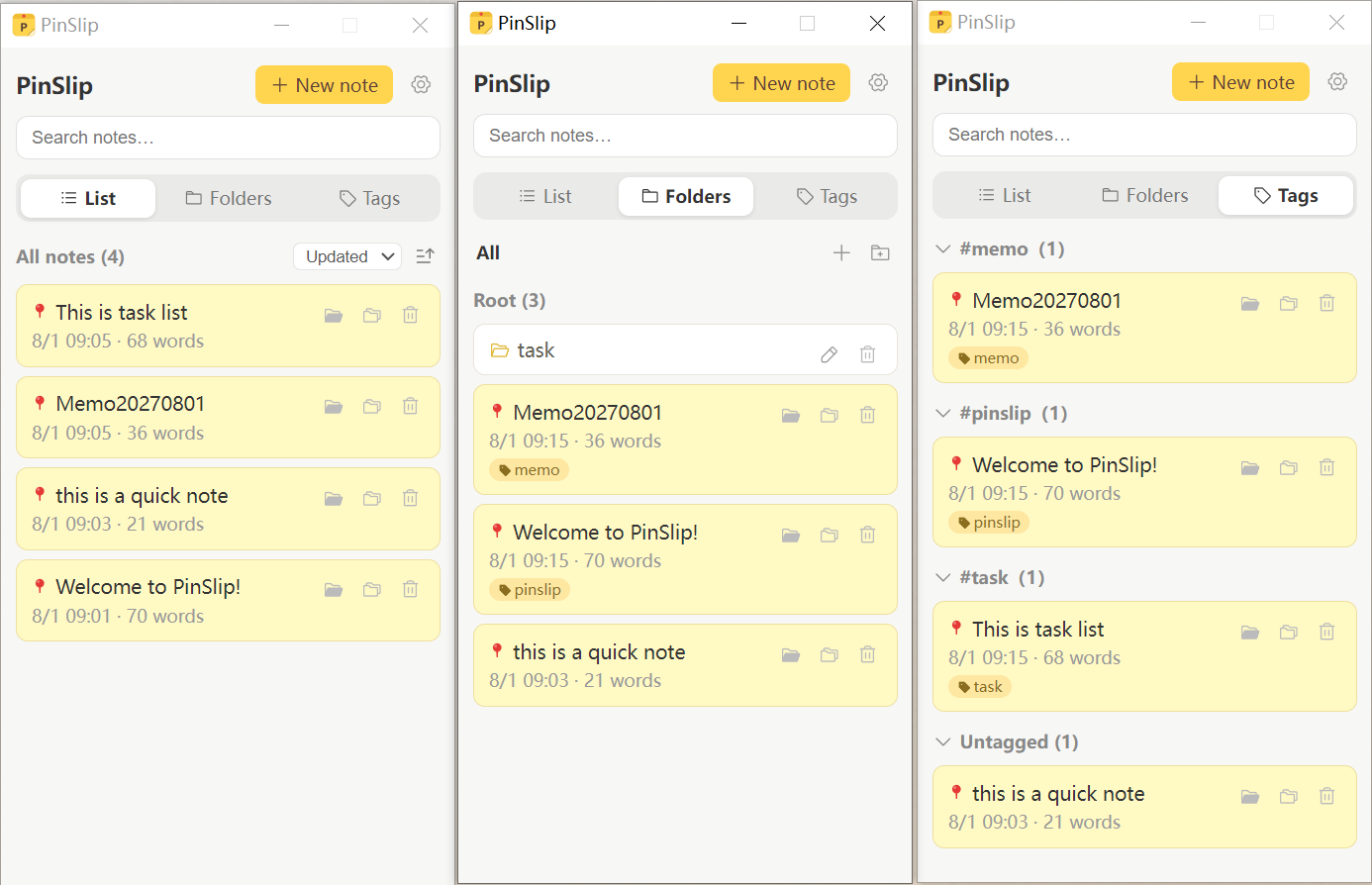
The main window has three tabs in the middle:
Tab | Purpose |
|---|---|
List | Sorted by |
Folders | Tree browsing + breadcrumbs. |
Tags | Grouped by tag, collapsible. |
The bottom also shows character count + last-updated time.
3.5 Recycle Bin
Accidental deletes are safe. Everything deleted goes to .trash/ first.
Auto Cleanup
Settings → Recycle Bin → Auto-cleanup after:
7 days / 30 days (default) / 90 days / Never
Expired files are scanned on every launch and emptied automatically.
Manual Operations
Open the recycle bin: opens
.trash/in your system file manager.Recover a mistake: drag the file back anywhere under
notes/. PinSlip detects it and rebuilds the index.Empty the recycle bin: click the Empty button (two-step confirmation to avoid accidents).
Dragging a folder (instead of a single file) also recovers the contents; PinSlip handles nested directories automatically.
3.6 Sharing a Vault With Obsidian
PinSlip and Obsidian are fully compatible with the same directory:
Point both at the same vault
Changes show up live in both directions (PinSlip watches file changes)
Images live in
attachments/, readable from both apps