
Markdown Sticky Notes: A Simple Way to Keep Notes on Your Desktop
One of the best things about desktop sticky notes is how easy they make it to capture information.
A quick to-do item, a temporary idea, a useful terminal command, or a few notes from a meeting. You can write something down and keep working without opening a full document editor.
But traditional sticky notes often work best for plain text.
Once you need checklists, headings, code snippets, or structured information, a simple text note can start to feel limiting.
That's where Markdown sticky notes come in.
Markdown lets you organize information using lightweight formatting while keeping the simplicity of desktop sticky notes.
You don't need to open a full word processor for a short checklist, and you don't need a complex note-taking system just to organize a few ideas.
In this guide, we'll explore how Markdown makes desktop notes more useful, look at practical examples, and show how to create Markdown sticky notes using PinSlip.
1. What Are Markdown Sticky Notes?
Markdown sticky notes are desktop notes that support Markdown formatting.
Traditional sticky notes are usually designed for short text reminders. Markdown adds structure through headings, bold text, lists, quotes, and code formatting.
For example, a plain text sticky note might look like this:
Finish homepage design
Check mobile layout
Fix button colors
Publish the update
With Markdown, you can turn the same information into a more organized checklist:
Today's Tasks
- [ ]Finish homepage design
- [ ]Check mobile layout
- [ ]Fix button colors
- [ ]Publish the update
The difference isn't just visual.
You can clearly distinguish completed tasks from unfinished ones, group related information, and quickly scan a note without reading every line.
Markdown is also a lightweight text format.
You only need to learn a few common formatting patterns to start using it effectively.
And with a WYSIWYG Markdown editor, you may not even need to type the formatting syntax manually.
2. Why Use Markdown for Desktop Sticky Notes?
Markdown is widely used for technical documentation, developer notes, and online writing.
But it's also useful for everyday desktop notes.
The reason is simple: not every quick note is just one line of text.
Here are five practical examples.
1. Manage Daily Tasks with Markdown Checklists
To-do lists are one of the most common uses for desktop sticky notes.
Imagine you're working on a website update and need to track several tasks:
Update homepage title
Check navigation links
Test mobile layout
Publish the new version
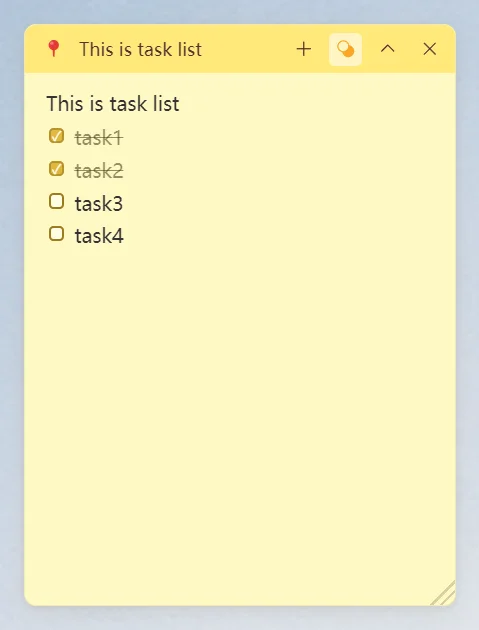
Markdown uses - [ ] for an incomplete task and - [x] for a completed task.
Instead of using ordinary bullet points, you can create a checklist that makes progress easy to see.
In a Markdown sticky notes app such as PinSlip, you can also click the checkboxes directly to change their completion state.
This turns a simple desktop note into a lightweight task tracker without requiring a separate project management application.
You can keep the checklist visible while working and update it as you finish each item.
2. Keep Code Snippets and Useful Commands Nearby
If you write code, you've probably encountered this situation:
You're working on a project and need to remember a terminal command, API endpoint, or configuration value.
The information is useful right now, but perhaps not important enough to create a separate documentation file.
For example:
npm run build
git status
git pull origin main
Markdown supports fenced code blocks that preserve the structure of commands and code snippets.
You can also use inline code formatting for short values such as NODE_ENV, localhost:3000, or npm install.
This makes technical information easier to read and copy than mixing everything into ordinary paragraphs.
With PinSlip, you can keep these snippets in an always-on-top desktop note beside your IDE or terminal.
Of course, a sticky note isn't a replacement for a proper code editor.
For large files, debugging, or complex development work, a dedicated IDE is still the better tool.
But for temporary commands and quick references, a Markdown sticky note can be surprisingly convenient.
3. Organize Meeting Notes and Quick Drafts
Markdown isn't just useful for developers.
Imagine you've just finished a meeting and want to capture the decisions and next steps before you forget them.
If you put everything into one long paragraph, finding the important details later can be difficult.
With Markdown, you can organize the same information into a simple structure.
Project Meeting Notes
Decisions
Use the new homepage design
Update mobile navigation
Complete initial testing next week
Open Questions
Should we add dark mode?
Do we need to adjust the signup flow?
Next Steps
Update design files
Assign development tasks
Prepare the testing environment
Headings, bold text, and checklists make the note much easier to scan.
You can use the sticky note as a temporary draft and later move the content into a project document, email, or task management system.
This is one of Markdown's strengths: it works well for both quick notes and more structured documents.
4. Highlight Important Information with Formatting
Sometimes a sticky note doesn't need much content, but one particular detail is important.
For example, you might want to remember a project rule:
Always check the mobile layout before publishing.
Or a configuration reminder:
Important: Update the production environment settings before deployment.
Markdown supports quotes, bold text, italics, and strikethrough formatting.
These features may seem small, but they can make a real difference when you frequently glance at desktop notes.
After all, sticky notes aren't always meant to be read from beginning to end.
Often, you just look at one for a second while switching between applications.
Clear formatting helps important information stand out immediately.
5. Turn Temporary Notes into Reusable Markdown Files
Traditional sticky notes are great for temporary information.
But what happens when a temporary note becomes something worth keeping?
Maybe you started with a few project tasks and gradually added useful development notes, references, and decisions.
If your sticky notes are stored as ordinary Markdown files, you can continue using them in other applications.
That's how PinSlip handles note storage.
PinSlip saves notes as .md files in a directory you choose.
You can open those files using VS Code, Obsidian, or another Markdown-compatible editor.
Your desktop notes don't have to become isolated pieces of information trapped inside one application.
They can become part of a larger collection of notes that you can organize, back up, and reuse later.
3. Do You Need to Write Markdown Syntax Manually?
Not necessarily.
Traditional Markdown editing usually involves writing formatting syntax and then viewing the rendered result.
For example:
Markdown Syntax | Rendered Result |
|---|---|
| A heading |
| Bold text |
| A bullet list |
| A task checkbox |
| A blockquote |
| Inline code |
However, many modern Markdown editors support live rendering or WYSIWYG editing.
WYSIWYG stands for "What You See Is What You Get."
Instead of writing raw Markdown in one panel and checking the result in another, you can work directly with formatted content.
For example, PinSlip provides WYSIWYG Markdown editing.
You can type familiar Markdown syntax and see it rendered directly in the note.
You can also use formatting controls for common operations without memorizing every Markdown symbol.
This makes Markdown more approachable for people who simply want better-organized notes without learning a complicated editing system.
The underlying content still benefits from Markdown's simplicity and portability.
4. How to Create Markdown Sticky Notes with PinSlip
PinSlip is a free, open-source desktop sticky notes app for Windows, macOS, and Linux.
It combines WYSIWYG Markdown editing with always-on-top windows, magnetic snapping, collapsible notes, and local-first storage.
If you want to try Markdown sticky notes, here's a simple way to get started.
Step 1: Download and Open PinSlip
Visit the official PinSlip download page and choose the version for your operating system.
Install the application, open it, and create a new sticky note.
If this is your first time using PinSlip, you can also follow the Getting Started with PinSlip guide.
Step 2: Create a Markdown Checklist
Try entering a short task list:
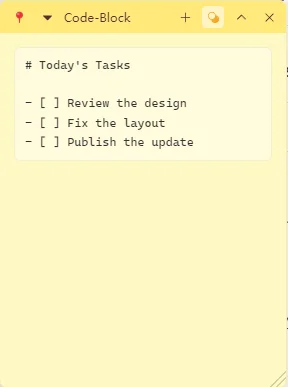
# Today's Tasks

- [ ] Review the design
- [ ] Fix the layout
- [ ] Publish the update
In PinSlip's WYSIWYG editor, the Markdown is rendered directly as a formatted heading and task list.
You can click the checkboxes to update task completion states.
This is a convenient way to manage a few active tasks without opening another application.
Step 3: Add More Formatting
You can also experiment with other Markdown features.
Try adding:
Bold text to highlight important information.
Headings to separate sections.
Blockquotes for reminders or reference material.
Inline code for commands or configuration values.
Code blocks for longer snippets.
Tables for small amounts of structured information.
You don't need to use every feature in every note.
The goal is to make information easier to read, not to turn a sticky note into a complicated document.
For more editing tips, see the Day-to-Day Note Operations in PinSlip guide.
Step 4: Keep Your Notes Visible While Working
After creating your note, move it to a convenient position on your desktop.
You can place it beside a browser, code editor, or another application.
Enable the always-on-top option if you want the note to remain visible while switching windows.
If you have multiple notes, PinSlip's magnetic snapping helps align them neatly.
And if a note is taking up too much screen space, you can collapse it until you need the full content again.
This is particularly useful when you're working on a laptop or using several applications at once.
Step 5: Access Your Markdown Files
PinSlip stores your notes as ordinary Markdown files in your chosen local directory.
You can find the .md files and open them in another compatible editor.
For example, you can use VS Code to inspect or edit a note directly, or open the same Markdown content in Obsidian.
If you work across multiple computers, PinSlip also offers Git-based synchronization using your own repository.
That feature requires some setup, but it provides another way to manage your Markdown files without depending on a dedicated note-hosting subscription.
5. Markdown Sticky Notes vs. Full Note-Taking Apps
Markdown sticky notes aren't designed to replace every note-taking application.
They're especially useful for shorter information that you need to capture quickly, keep visible, or actively work with.
Here's how they compare with full-featured note-taking software.
Use Case | Markdown Sticky Notes | Full Note-Taking Apps |
|---|---|---|
Capture quick ideas | Great | Great |
Keep active tasks visible on the desktop | Great | Depends on the app |
Create short Markdown checklists | Great | Great |
Save quick code snippets | Great | Great |
Write long technical documents | Less suitable | Better |
Build a complex knowledge base | Limited on their own | Better |
Manage extensive long-term research | Requires additional organization | Usually better |
For example, you might use PinSlip to keep today's development tasks visible on your desktop while storing longer project documentation in Obsidian.
Because PinSlip uses ordinary Markdown files, it can also work alongside other tools that support the same format.
You don't necessarily need two completely separate note collections.
A sticky note can be a quick entry point into a broader Markdown-based workflow.
6. When Should You Choose Markdown Desktop Sticky Notes?
Markdown sticky notes aren't necessary for everyone.
If you only need to save a phone number or write a one-line shopping reminder, traditional Windows Sticky Notes may be perfectly adequate.
But Markdown becomes more useful when your notes contain structured information.
Consider using Markdown sticky notes if you:
Frequently manage checklists with multiple tasks.
Save terminal commands, code snippets, or configuration values.
Want clearer formatting for meeting notes and temporary drafts.
Need notes that remain visible beside other applications.
Prefer storing notes as files you can open in other Markdown editors.
Want a lightweight alternative to opening a full document editor for every small task.
They're particularly useful for developers, designers, researchers, writers, and anyone switching between several projects throughout the day.
The advantage isn't that Markdown lets you create more complicated notes.
It's that it helps you organize everyday information without making note-taking much harder.
7. Frequently Asked Questions
What are Markdown sticky notes?
Markdown sticky notes are desktop notes that support Markdown formatting.
You can use headings, checklists, bold text, quotes, code blocks, and other simple formatting features to organize information.
Does Windows Sticky Notes support Markdown?
Microsoft Sticky Notes supports basic text formatting, but it doesn't provide a complete Markdown file editing and storage workflow.
If you want to work directly with Markdown files, a dedicated Markdown sticky notes app such as PinSlip is another option.
Is there a free Markdown sticky notes app?
Yes.
PinSlip is a free, open-source Markdown sticky notes app for Windows, macOS, and Linux.
It supports WYSIWYG Markdown editing, desktop note management, and local Markdown file storage.
Are Markdown sticky notes useful for programming?
Yes.
They're useful for short code snippets, terminal commands, API endpoints, configuration values, and temporary development checklists.
However, a dedicated code editor is still better for large code files and complex programming tasks.
Can Markdown sticky notes have checkboxes?
Yes.
Markdown task lists use - [ ] for incomplete tasks and - [x] for completed tasks.
PinSlip also lets you click checkboxes directly to change their completion state.
Do I need to learn Markdown syntax?
Not necessarily.
Markdown itself is relatively easy to learn, especially for common features such as headings, lists, and checkboxes.
And with a WYSIWYG editor like PinSlip, you can apply common formatting through editing controls instead of manually typing every Markdown symbol.
Can I open PinSlip Markdown files in Obsidian?
Yes.
PinSlip stores notes as ordinary Markdown files.
You can open them using Obsidian, VS Code, or another compatible Markdown editor.
This makes it easier to reuse or organize your notes outside PinSlip.
Can Markdown sticky notes stay always on top?
Yes, if the application supports window pinning.
PinSlip allows you to keep notes above other regular application windows while you work.
You can also resize, collapse, and arrange multiple notes on your desktop.
Final Thoughts: Keep Desktop Notes Simple, but More Organized
Desktop sticky notes are useful because they're convenient.
You don't need to create a full document just to record an idea, and you don't need a project management system for a handful of temporary tasks.
But simplicity doesn't mean every note has to be plain text.
Markdown gives desktop sticky notes a lightweight way to organize information.
You can create interactive checklists, save code snippets, structure meeting notes, and highlight important details using headings and formatting.
When combined with always-on-top windows, magnetic snapping, and local file storage, Markdown sticky notes can become a practical part of your everyday workflow.
And because Markdown is a portable text format, those notes can remain useful long after the original task is finished.
The goal isn't to make sticky notes more complicated.
It's to make them more useful while keeping the convenience that makes them worth using in the first place.
Try Markdown Sticky Notes with PinSlip
PinSlip is a free, open-source desktop sticky notes app for Windows, macOS, and Linux.
It supports WYSIWYG Markdown editing, interactive checklists, code formatting, images, always-on-top notes, and local Markdown file storage.
Start with a simple task list, then explore Git synchronization and AI integration when your workflow calls for them.
Download PinSlip for Free · View Source on GitHub
Looking for other desktop note-taking options? Check out our guide to the best free desktop sticky notes apps for Windows.