
Microsoft Sticky Notes is a good starting point for anyone who wants to keep quick notes on their Windows desktop. It's free, easy to use, and convenient for saving reminders, to-do lists, and ideas you don't want to forget.
Microsoft has also improved Sticky Notes over time. The newer version supports features such as always-on-top windows, screenshots, and links back to the original sources of your notes.
But depending on how you work, you might need something more.
Maybe you want to:
Write notes and task lists using Markdown.
Use the same sticky notes app across Windows, macOS, and Linux.
Sync your notes between computers using your own private Git repository.
Let an AI assistant help you search, create, and organize notes.
Keep your notes as ordinary files in a folder you control.
Fortunately, there are several free desktop sticky notes apps for Windows, and they offer more variety than you might expect.
In this guide, we'll compare five options: Microsoft Sticky Notes, PinSlip, Simple Sticky Notes, Stickies, and Notezilla.
Four offer free long-term use, while Notezilla is included as a commercial alternative for users who need more advanced features.
We'll look at their strengths, limitations, pricing, and ideal use cases so you can choose the one that fits your workflow.
1. Quick Comparison: Which Windows Sticky Notes App Should You Choose?
If you don't want to read the entire comparison, here's a quick overview.
App | Best For | Pricing | Key Features |
|---|---|---|---|
Microsoft Sticky Notes | Everyday Windows users | Free | Always on top in the newer version, screenshots, Microsoft account sync |
PinSlip | Developers, AI users, multitaskers | Free and open source | Markdown, always on top, snapping, private Git sync, MCP AI integration |
Simple Sticky Notes | Everyday tasks and reminders | Free | Reminders, checklists, themes, note management |
Stickies | Traditional desktop notes and reminders | Free | Scheduled reminders, window attachment, snapping |
Notezilla | Advanced note management | Trial and limited free use; primarily paid | Advanced organization, password protection, cross-device sync |
Our Recommendations
For simple everyday notes: Microsoft Sticky Notes is a great place to start. The newer version even supports always-on-top windows and screenshots, so it may already cover everything you need.
For developers, multitaskers, or people who want AI to help manage their notes: PinSlip is worth considering. It combines Markdown editing, local files, private Git repository sync, and an MCP interface for compatible AI assistants.
For personal to-do lists and reminders: Simple Sticky Notes and Stickies are both strong options.
For advanced management and commercial sync features: Notezilla is worth evaluating if you're willing to pay for additional functionality.
2. Microsoft Sticky Notes: Best for Simple Notes and Microsoft Users
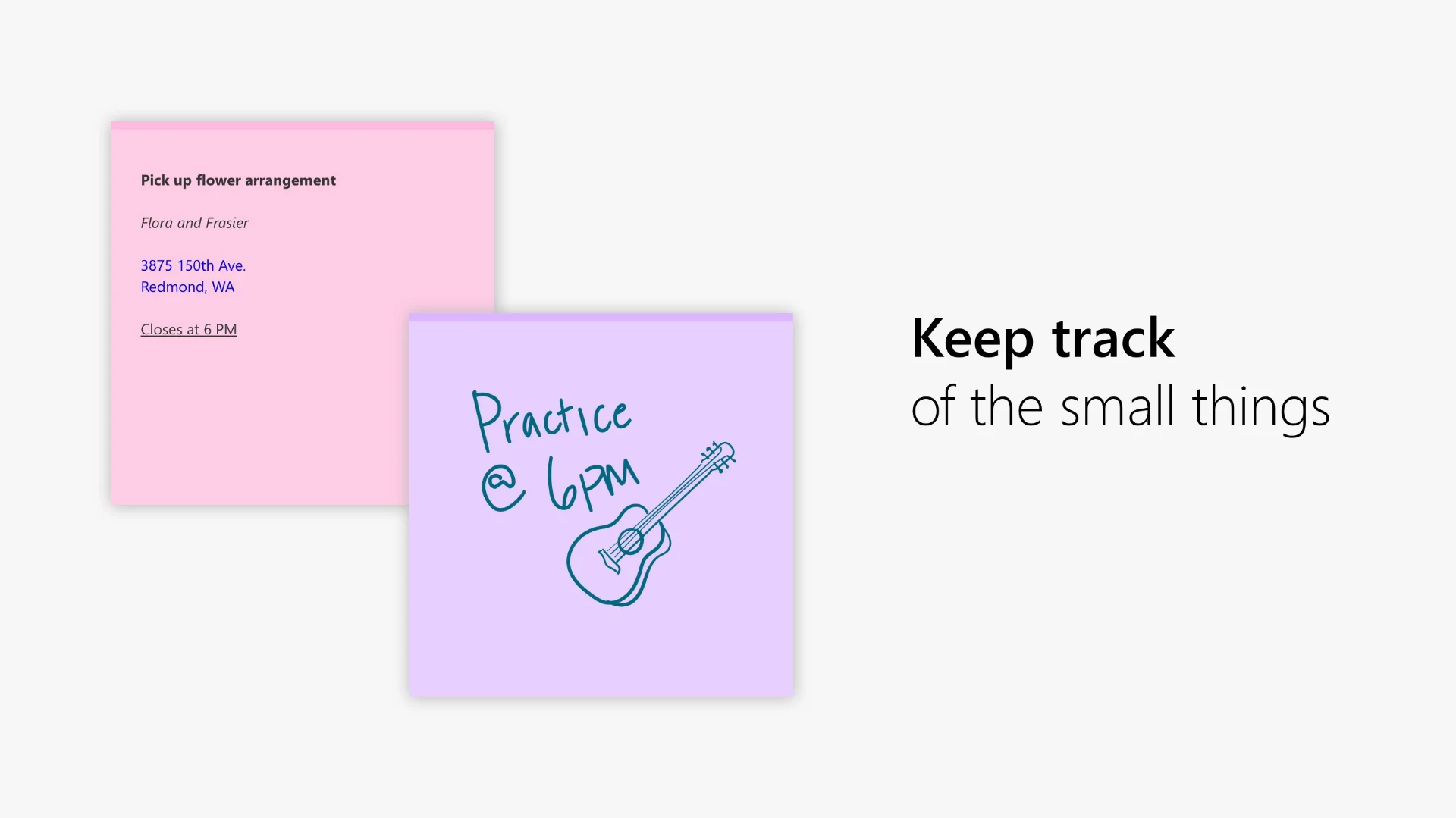
Best for: Everyday Windows users, Microsoft 365 users, and people who prefer not to install additional software.
Price: Free.
Platforms: Windows 10 and Windows 11, with access to synced notes through supported Microsoft apps and services.
Microsoft Sticky Notes is one of the most familiar note-taking tools on Windows.
Its biggest advantage is simplicity.
Create a note, type something, choose a color, and get back to work. There's no complicated notebook structure to learn or project to configure.
If you sign in with a Microsoft account, you can also sync notes across supported Microsoft applications and devices.
However, there's an important distinction to understand before choosing it.
New Sticky Notes vs. Legacy Sticky Notes: What's the Difference?
Microsoft currently has two different Sticky Notes experiences that users may encounter.
Legacy Microsoft Sticky Notes
This is the classic standalone app many Windows users know.
It supports colorful notes, basic text formatting, images, and Microsoft account sync.
However, the legacy app does not include a native always-on-top feature.
New Sticky Notes (OneNote-based)
The newer Sticky Notes experience is integrated with OneNote.
In addition to basic note-taking, it introduces features such as screenshots, source-aware notes, and the ability to pin popped-out note windows above other applications.
Microsoft announced the always-on-top feature for the newer Sticky Notes experience in September 2024.
This means that if you can't find an always-on-top button in Sticky Notes, it doesn't necessarily mean the feature is unavailable. You may simply be using the older application.
Feature availability can also depend on your OneNote version, account, and update status.
Pros
Free and easy to use.
The newer version supports always-on-top note windows.
Screenshot capture and source-aware notes.
Basic text formatting and images.
Microsoft account syncing.
Convenient integration with Windows and OneNote.
Cons
The differences between the legacy and newer versions can be confusing.
No complete Markdown file editing workflow.
No built-in option to sync notes through your own private Git repository.
No general-purpose MCP interface for AI-assisted note management like PinSlip provides.
Limited flexibility for users who prefer tags, folders, and direct local file management.
Who Should Use It?
If you mainly need to save quick reminders, meeting notes, or temporary information, Microsoft Sticky Notes is still an excellent choice.
With always-on-top support added to the newer version, many users may no longer need a third-party app just to keep notes visible.
However, if you want Markdown files, direct control over your note storage, or AI assistants that can work with your notes, other tools may be a better fit.
Related reading: Windows Sticky Notes Alternative: Why I Built PinSlip
3. PinSlip: Best for Markdown, Git Sync, and AI Workflows
Best for: Developers, designers, researchers, AI tool users, multitaskers, and anyone who wants more control over their notes.
Price: Completely free and open source.
Platforms: Windows, macOS, and Linux.
Website: https://pinslip.app
Editor's note: PinSlip is developed by the team behind this website. We've included it alongside other options and highlighted both its strengths and limitations to help you make an informed choice.
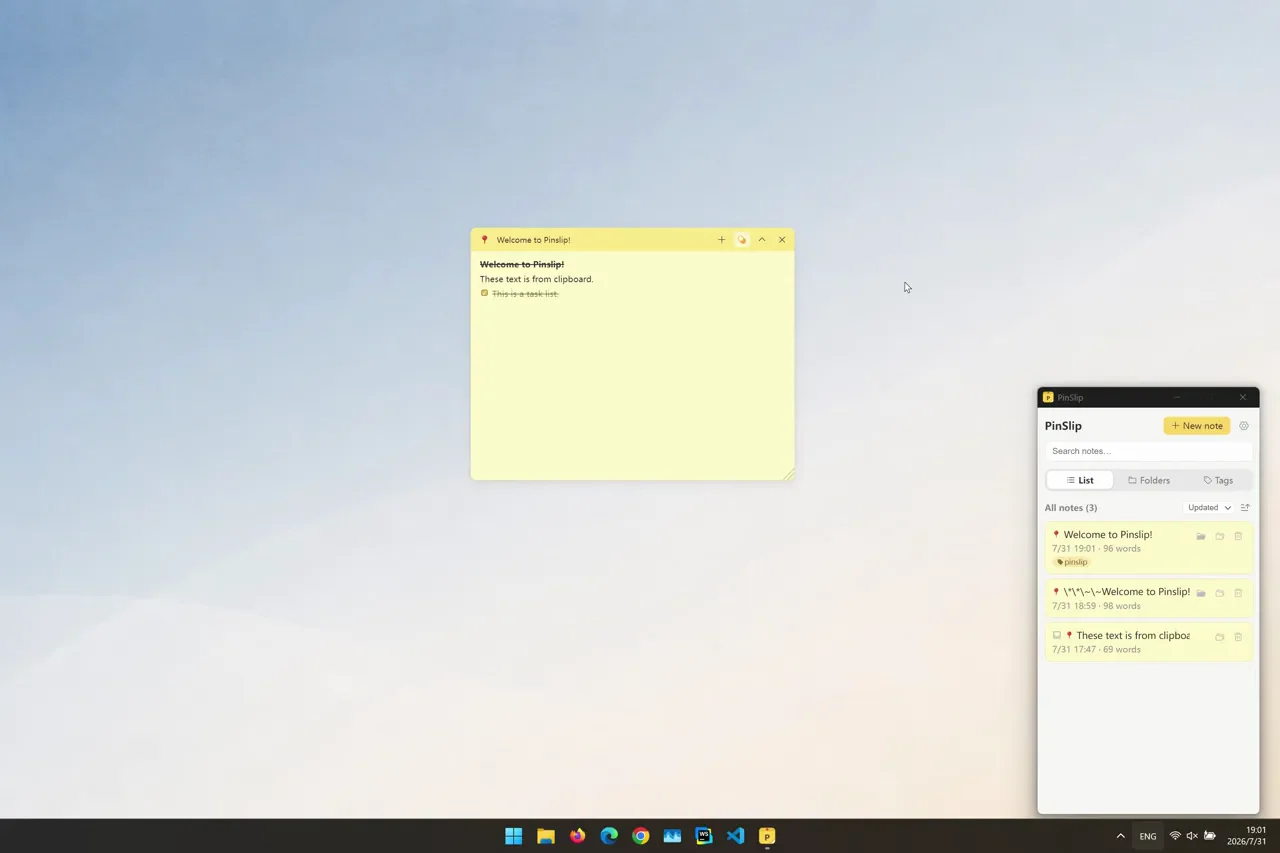
PinSlip is a free, open-source, local-first desktop sticky notes app.
Unlike traditional sticky notes apps that focus mainly on writing and storing short messages, PinSlip also focuses on how notes fit into your everyday workflow.
For example, you can keep a task list beside your code editor, store project notes as Markdown files, sync them to another computer using your own Git repository, and let a compatible AI assistant search or update those notes.
These capabilities are available without purchasing a paid PinSlip subscription.
1. Always-on-Top Notes, Magnetic Snapping, and Collapsible Windows
PinSlip allows notes to stay above other application windows.
When you're switching between a browser, code editor, or another app, important information can remain visible without constantly reopening your notes.
You can also arrange multiple notes on your desktop. When notes move close to one another, magnetic snapping helps align them neatly.
If you don't need to see the full content all the time, you can collapse a note into a compact bar to save screen space.
Notes can also be resized to fit your workspace.
This makes PinSlip particularly useful when you want information to remain visible while working rather than disappear into another application.
2. WYSIWYG Markdown Editing
PinSlip supports Markdown with a what-you-see-is-what-you-get editing experience.
You can format content using headings, bold text, strikethrough, task lists, and images without switching between separate editing and preview modes.
For developers and technical writers, this makes it easier to keep code-related notes, project plans, and structured checklists directly on the desktop.
And because the notes are stored as Markdown files, they aren't locked inside a proprietary document format.
3. Local-First Storage with Ordinary Markdown Files
One of PinSlip's core design principles is local-first storage.
Instead of requiring an online account or storing all your notes in a proprietary cloud database, PinSlip keeps them as ordinary Markdown files.
You can choose where those files are stored.
You can also open them using tools such as VS Code, Obsidian, or another Markdown-compatible editor.
Even if you stop using PinSlip, your notes remain accessible.
For people who care about long-term data ownership, backups, and portability, this is an important advantage.
4. Sync Notes Using Your Own Private Git Repository
[Image: PinSlip's Git Sync settings showing repository configuration and sync status. Hide authentication tokens and private information.]
PinSlip includes Git synchronization.
You can connect your notes to a GitHub, GitLab, or another compatible Git repository, including a private repository that you control.
Once configured, PinSlip can automatically commit, pull, and push note changes on a schedule. You can also trigger synchronization manually.
For example, you might write notes on your office computer and sync them through your private repository so they're available on your laptop later.
You don't need to install the Git command-line tool separately because PinSlip includes the required Git functionality.
PinSlip also supports three-way merge conflict handling. It can attempt to merge changes made in different locations and allows you to review conflicts when automatic merging isn't possible.
There is one important limitation: this isn't a zero-configuration consumer cloud sync service.
You'll need to set up a repository and authentication credentials first.
But if you're already comfortable with GitHub or GitLab, it offers a free and flexible way to synchronize notes without depending on a dedicated note-hosting subscription.
Learn more: PinSlip Git Sync Guide
5. Connect AI Assistants Through MCP
[Image: PinSlip MCP settings alongside a real AI assistant interaction that searches or creates notes through MCP.]
This is one of PinSlip's more distinctive features compared with traditional desktop sticky notes apps.
PinSlip includes a built-in MCP Server.
MCP stands for Model Context Protocol, a protocol that allows compatible AI assistants to interact with external tools and data sources.
When you enable PinSlip's MCP integration, a compatible AI assistant can interact with your local notes through the available tools.
For example, you could ask an AI assistant to:
Find information
"Find all my notes related to API design."
Organize your work
"Find my Project A notes and summarize the current progress."
Create new notes
"Turn the three action items from our discussion into a new sticky note."
Update existing notes
"Add the decisions from this meeting to my project planning note."
With MCP, an AI assistant can do more than answer questions based on text you manually copy into a chat. Within the tools and permissions you enable, it can search, read, create, and update notes.
This makes desktop sticky notes potentially useful as part of a broader AI-assisted workflow.
However, PinSlip isn't an AI chatbot with a built-in language model.
It provides an MCP interface that external AI tools can connect to. You'll still need a compatible AI client and some initial configuration.
The MCP Server is disabled by default and must be enabled manually.
6. Browser Clipping and Quick Capture
PinSlip also provides browser extensions for Chrome and Firefox.
These allow you to save selected text, links, images, or webpage content directly into your notes.
For example, while reading technical documentation, you can save an important configuration snippet to PinSlip and return to your editor without manually copying everything between applications.
PinSlip also includes a quick-capture window accessible through a keyboard shortcut.
It's useful when you need to record an idea quickly without interrupting your main task.
Pros
Completely free and open source.
Supports Windows, macOS, and Linux.
Always-on-top notes, magnetic snapping, resizing, and collapsing.
WYSIWYG Markdown editing.
Stores notes as ordinary Markdown files.
Synchronization through your own private Git repository.
Built-in MCP Server for compatible AI assistants.
Browser clipping, quick capture, tags, and folder organization.
No PinSlip account required for core functionality.
Cons
No built-in, fully managed cloud sync service; Git synchronization requires initial setup.
MCP integration requires a compatible AI client and configuration.
AI features depend on external AI tools rather than an integrated language model.
No full scheduled alarm or recurring reminder system at present.
Some advanced features may be unnecessary if you only need to write a few lines of text.
Who Should Use It?
If you only want to write an occasional quick note, Microsoft Sticky Notes may be simpler.
But if you want desktop sticky notes to become part of your ongoing workflow, PinSlip offers a different approach.
It's particularly useful for people who:
Want Markdown notes that remain visible on their desktop.
Prefer syncing notes through a Git repository they control.
Already use MCP-compatible AI assistants and want them to help search or manage notes.
Don't want their notes locked into a proprietary application database.
Work across multiple desktop operating systems.
Want to give it a try?
You can also explore the source code, report issues, or contribute to development on GitHub.
4. Simple Sticky Notes: Best for Everyday Tasks and Reminders
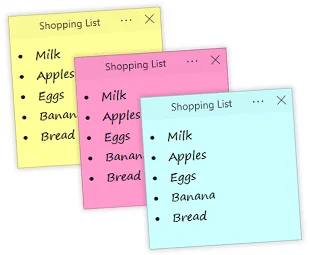
Best for: Students, office workers, and people managing personal to-do lists.
Price: Free.
Platforms: Windows.
Website: https://www.simplestickynotes.com/
Simple Sticky Notes is a free desktop sticky notes app designed specifically for Windows.
It keeps the familiar appearance of traditional sticky notes while adding features such as reminders, checklists, and note management.
You can create shopping lists, personal task lists, or notes with reminders for things you need to do later.
It also includes Note Explorer, which helps you search and manage existing notes from one place.
Pros
Free to use.
Supports reminders and alarms.
Checklists with task checkboxes.
Note searching and management.
Themes, colors, transparency, and dark mode.
Easy to get started without a complex setup.
Cons
Windows only.
Focuses more on traditional notes and to-do lists than Markdown file workflows.
Doesn't provide the same private Git sync and MCP AI integration approach as PinSlip.
Who Should Use It?
If you're looking for free sticky notes for Windows with useful reminders and checklists, Simple Sticky Notes is a solid option.
It's particularly suitable if you don't need Markdown, cross-platform support, or AI integration.
5. Stickies: Best for Traditional Desktop Notes and Scheduled Reminders
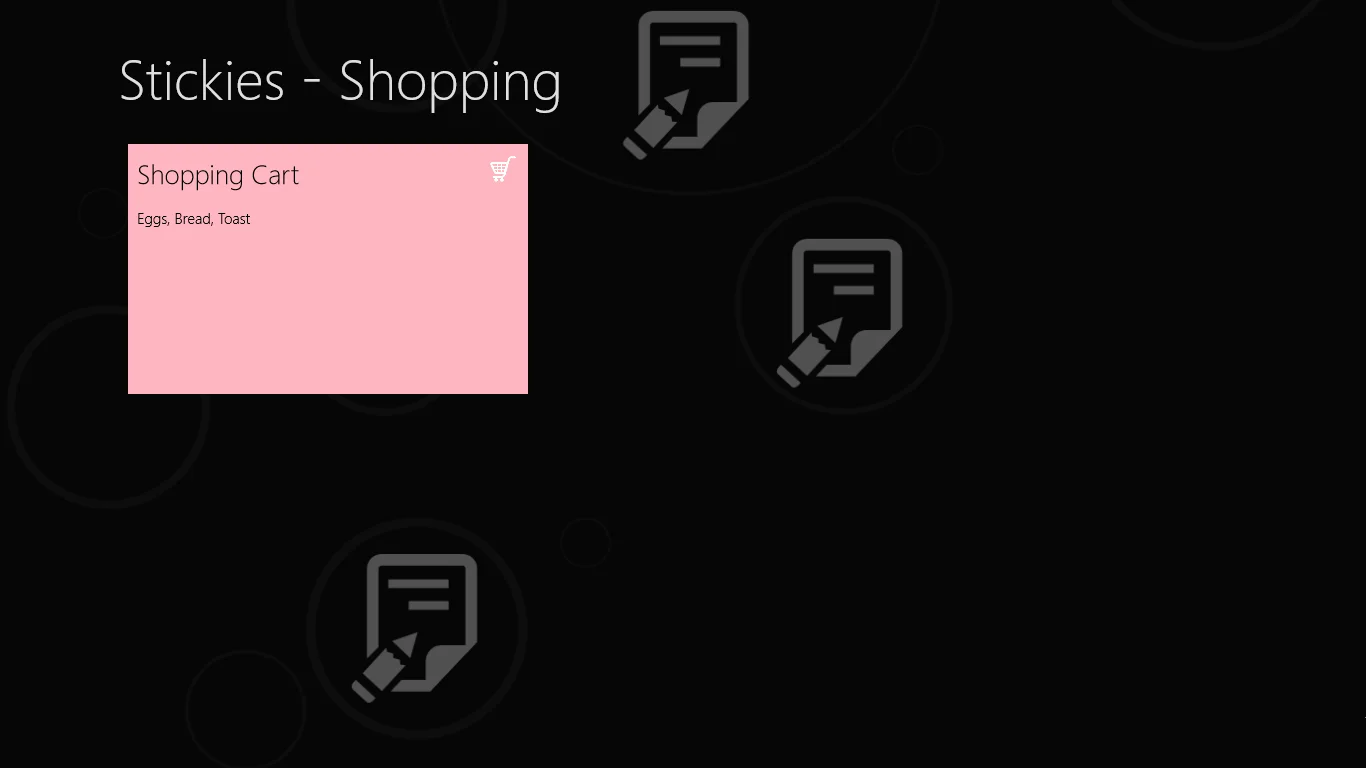
Best for: People who prefer classic Windows utilities, scheduled reminders, and flexible sticky note configurations.
Price: Free.
Platforms: Windows.
Website: https://www.zhornsoftware.co.uk/stickies/
Stickies is a long-running Windows desktop sticky notes application developed by Zhorn Software.
Its design follows a straightforward idea: make digital sticky notes behave like physical notes attached to your desktop.
Despite its traditional appearance, Stickies offers an extensive set of features.
You can customize note colors, fonts, and sizes, schedule reminders, and attach notes to particular applications or documents.
For example, you can configure a note to reappear at a scheduled time or associate it with a specific application window.
These features are especially useful when notes are part of your reminder system.
Pros
Completely free.
Scheduled reminders and recurring alerts.
Magnetic snapping between notes.
Ability to attach notes to applications or documents.
Extensive appearance customization.
Local note storage.
Cons
Windows only.
Traditional desktop software interface.
Many configuration options may require some learning.
Not primarily designed around Markdown files or AI-assisted workflows.
Who Should Use It?
If you prefer classic Windows utilities and want a highly configurable sticky notes application, Stickies is worth trying.
Its reminder features, window attachment options, and customization tools make it a strong alternative to more basic note-taking apps.
6. Notezilla: Best for Advanced Note Management and Sync
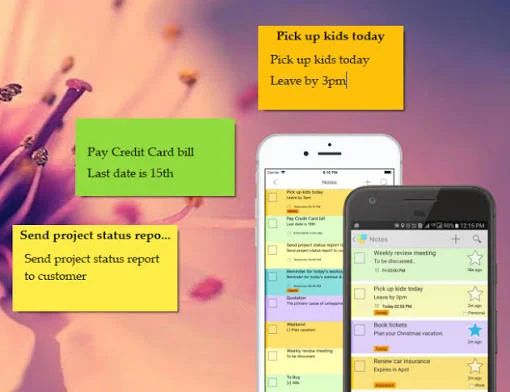
Best for: People who need advanced organization, note attachment, cross-device sync, or password protection.
Price: Trial and limited free use; advanced features require a paid license.
Website: https://www.notezilla.net/
Notezilla is a desktop sticky notes application aimed at users with more advanced needs.
Beyond creating notes, it offers folder organization, reminders, note attachment, password protection, and synchronization features.
For example, you can associate notes with specific webpages or files so that relevant information is easier to find when working on those items.
Compared with the fully free options in this guide, Notezilla's main strength lies in its broader collection of commercial productivity features.
However, it isn't an entirely free application with unrestricted access to every advanced feature.
Pros
Advanced note organization.
Notes can be attached to files, folders, or webpages.
Reminders and password protection.
Cross-device synchronization options.
Suitable for more complex note-management workflows.
Cons
Advanced features require payment.
Free usage has limitations.
May be unnecessarily complex for occasional notes.
Less suitable if you're specifically looking for a completely free solution.
Who Should Use It?
If you need advanced note management, password protection, and commercial synchronization features, Notezilla is worth evaluating.
If keeping costs down is your priority, try one of the fully free applications in this guide first.
7. Which Desktop Sticky Notes App Fits Your Workflow?
There isn't a single best sticky notes app for everyone.
The right choice depends on how you actually use notes throughout the day.
Scenario 1: You Occasionally Need to Save Quick Information
Recommended: Microsoft Sticky Notes
Maybe you're saving a phone number, a meeting time, or something you need to remember later.
The newer Microsoft Sticky Notes offers enough features for many everyday needs, including always-on-top windows and screenshots.
Scenario 2: You Code, Research, or Work Across Multiple Windows
Recommended: PinSlip
Imagine writing code while keeping an API reference, checklist, and a few temporary commands visible beside your editor.
Markdown editing, collapsible notes, magnetic snapping, and local file management can make this workflow more convenient.
Scenario 3: You Want to Sync Markdown Notes Across Computers
Recommended: PinSlip
If you already use GitHub or GitLab, PinSlip lets you synchronize notes using your own private repository.
Instead of relying entirely on an application-specific cloud service, you retain control over where your notes are stored and how changes are tracked.
You'll need to configure repository access, but the result can fit naturally into an existing Git-based workflow.
Scenario 4: You Want AI to Help Manage Your Notes
Recommended: PinSlip
If you're already using an MCP-compatible AI assistant, you can connect it to PinSlip and allow it to interact with your notes.
For example, you could ask your assistant to summarize project notes, find relevant information, or turn a discussion into a new sticky note.
It's a useful option for people who want their everyday notes to become part of an AI-assisted workflow.
Scenario 5: You Need Personal Task Lists and Reminders
Recommended: Simple Sticky Notes
If checklists, reminder times, and searching old notes matter more than Markdown or AI integration, Simple Sticky Notes is a practical choice.
Scenario 6: You Need Notes That Reappear at Scheduled Times
Recommended: Stickies
If you want notes to appear at particular times or attach them to certain applications, Stickies offers flexible configuration options.
Scenario 7: You Need Commercial-Grade Note Management
Recommended: Notezilla
If you're willing to pay for more advanced organization, synchronization, and security features, Notezilla is worth considering.
8. What Should You Look for in a Desktop Sticky Notes App?
Beyond appearance, there are several practical factors worth considering.
1. Can Your Notes Stay Visible?
Some applications focus on storing and searching notes. Others are designed to keep notes visible while you work.
For anyone who frequently switches between windows, always-on-top functionality can be more useful than additional note colors.
Both the newer Microsoft Sticky Notes and PinSlip support always-on-top windows.
However, if you also want collapsing, magnetic snapping, and flexible multi-note arrangements, it's worth comparing their window-management capabilities.
2. What Happens When You Have Dozens of Notes?
Managing one or two notes is easy.
Managing dozens across multiple projects is another matter.
Features such as search, tags, folders, grouping, and note managers become much more important as your collection grows.
Think about how you'll find a note weeks or months after creating it, not just how easy it is to write one today.
3. Where Is Your Data Stored?
Different sticky notes apps use different storage approaches.
Some rely on application databases. Others offer account-based synchronization. Some use ordinary files.
If you care about backups, portability, or long-term access, it's worth understanding how your notes are stored.
For example, PinSlip uses ordinary Markdown files that you can open with other compatible editors.
That makes it easier to use your notes outside the original application.
4. What Kind of Sync Do You Need?
Not all synchronization needs to involve a dedicated note-taking cloud service.
Microsoft Sticky Notes supports Microsoft account syncing.
PinSlip lets you connect your own Git repository, including a private one, and synchronize Markdown files between computers.
The first approach is more convenient for people who want to sign in and get started.
The second is useful for those who value file ownership and version history, and don't mind configuring Git access.
5. Do You Want AI to Work with Your Notes?
If you're only keeping a shopping list, you probably don't need AI integration.
But if your notes contain project plans, research material, work tasks, and ideas, an AI assistant that can search and organize them may be useful.
PinSlip offers this capability through MCP.
However, AI integration also introduces privacy considerations.
Even when notes are stored locally, content accessed by an external AI assistant may be transmitted to that assistant's service, depending on the client, model, and configuration you use.
Local-first storage doesn't automatically mean all AI processing happens locally.
6. Do You Need Scheduled Reminders?
If you want a notification at a specific time, apps such as Simple Sticky Notes and Stickies deserve particular attention.
If you mainly want a task to remain visible until it's done, always-on-top notes and checklists might matter more.
The best choice depends on whether you need to remember something later or keep it in front of you right now.
9. Frequently Asked Questions
What is the best free desktop sticky notes app for Windows 11?
It depends on your workflow.
Microsoft Sticky Notes is a convenient choice for simple notes. PinSlip is useful for Markdown, Git synchronization, and AI integration. Simple Sticky Notes is good for everyday tasks, while Stickies offers advanced traditional reminder features.
Can Windows Sticky Notes stay always on top?
Yes, the newer version can.
The OneNote-based Sticky Notes experience supports pinning popped-out note windows above other applications.
However, the legacy standalone Microsoft Sticky Notes app doesn't include the same native always-on-top feature.
If you can't find the pin button, check which version you're using.
Are there completely free sticky notes apps for Windows?
Yes.
Microsoft Sticky Notes, PinSlip, Simple Sticky Notes, and Zhorn Software's Stickies all offer free desktop note-taking.
PinSlip is also open source under the MIT License.
Which desktop sticky notes app supports Markdown?
PinSlip supports WYSIWYG Markdown editing and stores notes as ordinary Markdown files.
This makes it useful for technical notes, task lists, and content you may want to access using other Markdown editors.
Which sticky notes app supports Git synchronization?
PinSlip supports Git-based note synchronization using your own repository.
You can connect it to GitHub, GitLab, or another compatible service, including private repositories.
It supports automatic and manual syncing after the initial configuration.
Can AI assistants manage desktop sticky notes?
Yes, if the application provides a suitable integration.
PinSlip includes an MCP Server that allows compatible AI assistants to search, read, create, and update notes through its available tools.
PinSlip provides the integration interface rather than a built-in AI model.
Do I need to pay to use PinSlip's AI integration?
PinSlip's MCP integration is free and open source.
However, any fees associated with an external AI assistant depend on the AI service or model you choose.
Do I need to install Git to use PinSlip Git Sync?
No.
PinSlip includes the Git functionality required for synchronization.
You'll need to configure a repository and the necessary access credentials, but you don't have to install the Git command-line tool separately.
Which free sticky notes app works on Windows, macOS, and Linux?
PinSlip supports all three desktop operating systems and is free and open source.
Its Markdown file storage and Git synchronization features can also be helpful if you work across computers running different operating systems.
Final Thoughts: Choose the Sticky Notes App That Fits Your Workflow
There are several good desktop sticky notes apps for Windows, and each offers something different.
Microsoft Sticky Notes stands out for its simplicity, free availability, and Microsoft integration. The newer version also adds always-on-top windows and screenshots, making it a capable option for everyday use.
Simple Sticky Notes provides useful checklists and reminders, while Stickies offers extensive customization, scheduled alerts, and window attachment features.
If you prefer Markdown, want to keep your notes in files you control, or need to sync them using your own private Git repository, PinSlip offers a different approach.
And if you're already using AI assistants, PinSlip's MCP integration makes it possible to incorporate desktop notes into AI-assisted workflows.
For users who need more advanced commercial synchronization and management features, Notezilla is another option worth evaluating.
Ultimately, the best desktop sticky notes app isn't necessarily the one with the longest feature list.
It's the one that makes your notes easy to capture, easy to find, and useful when you actually need them.
Try PinSlip for Free
PinSlip is a free, open-source desktop sticky notes app for Windows, macOS, and Linux.