
Have you ever created a sticky note on your Windows desktop, only to have it disappear behind your browser, code editor, or another application?
You write down something important, switch to another window, and suddenly your note is hidden.
Then you have to minimize windows or switch back just to read it.
If you want to keep sticky notes always on top of other windows, there are several free ways to do it.
In this guide, we'll cover three methods:
Microsoft Sticky Notes: Use the built-in pinning feature in the newer version.
Microsoft PowerToys: Keep almost any application window on top using a keyboard shortcut.
PinSlip: Use a dedicated desktop sticky notes app with always-on-top support, magnetic snapping, and collapsible notes.
We'll also explain why some versions of Microsoft Sticky Notes don't have an Always on Top button and how to fix common pinning problems.
Whether you're using Windows 11 or Windows 10, you can choose the approach that best fits your workflow.
Method 1: Keep Notes on Top with Microsoft Sticky Notes
If you're using the newer version of Microsoft Sticky Notes, you may not need to install anything else.
Microsoft added an Always on Top feature to the newer, OneNote-based Sticky Notes experience.
This allows you to keep an individual sticky note visible above other applications while you work.
Step 1: Open the New Sticky Notes
Open the Windows Start menu and search for Sticky Notes.
Be aware that Microsoft has offered two different Sticky Notes experiences:
The classic standalone Microsoft Sticky Notes app.
The newer Sticky Notes experience integrated with OneNote.
The newer version includes additional features such as screenshots, source-aware notes, and window pinning.
Step 2: Open or Create a Note
Open an existing note or create a new one.
You can type a reminder, a short checklist, or anything else you want to keep visible.
Step 3: Pop Out the Note
Open the note in its own window using the pop-out option.
This gives the note a separate window that you can position anywhere on your desktop.
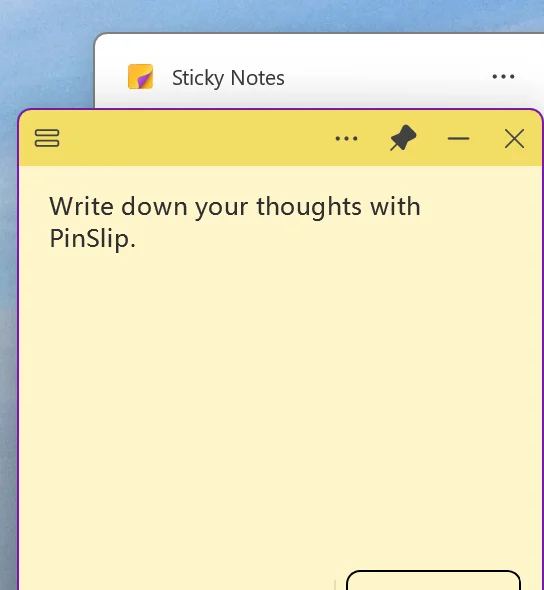
Step 4: Click the Pin Button
Look for the pin icon at the top of the popped-out note window.
Click it to enable Always on Top.
Your note should now stay visible above regular application windows, even when you switch between apps.
You can move the note to a convenient position and continue working.
Why Doesn't My Microsoft Sticky Notes Have an Always on Top Button?
This is a common source of confusion.
The legacy Microsoft Sticky Notes app doesn't include the same native Always on Top feature.
The newer OneNote-based Sticky Notes supports pinning popped-out notes.
If you don't see the pin button, check which version you're using and whether the newer Sticky Notes experience is available and updated on your computer.
You can also check Microsoft's official Sticky Notes documentation for the latest availability information.
If you prefer to keep using the classic app, there's another solution: Microsoft PowerToys.
Method 2: Use Microsoft PowerToys to Pin Any Window
What if you want to keep the classic Sticky Notes app on top?
Or perhaps you want to pin Notepad, Calculator, a browser window, or another application.
In that case, Microsoft PowerToys is a useful option.
PowerToys is a free, open-source collection of Windows utilities developed by Microsoft.
One of its features, called Always On Top, lets you pin the currently active window above other windows using a keyboard shortcut.
Step 1: Install Microsoft PowerToys
Download PowerToys from the official Microsoft website:
Install it and open the PowerToys settings window.
Step 2: Enable Always On Top
In PowerToys settings, find Always On Top.
Make sure the feature is enabled.
You can also configure its activation shortcut and other options, such as the colored border around pinned windows.
Step 3: Select the Window You Want to Pin
Open the application you want to keep on top.
For example, you might open the classic Microsoft Sticky Notes app and select one of its note windows.
Click the window to make sure it's active.
Step 4: Press the Always On Top Shortcut
Press:
Win + Ctrl + T
PowerToys will pin the active window above other regular windows.
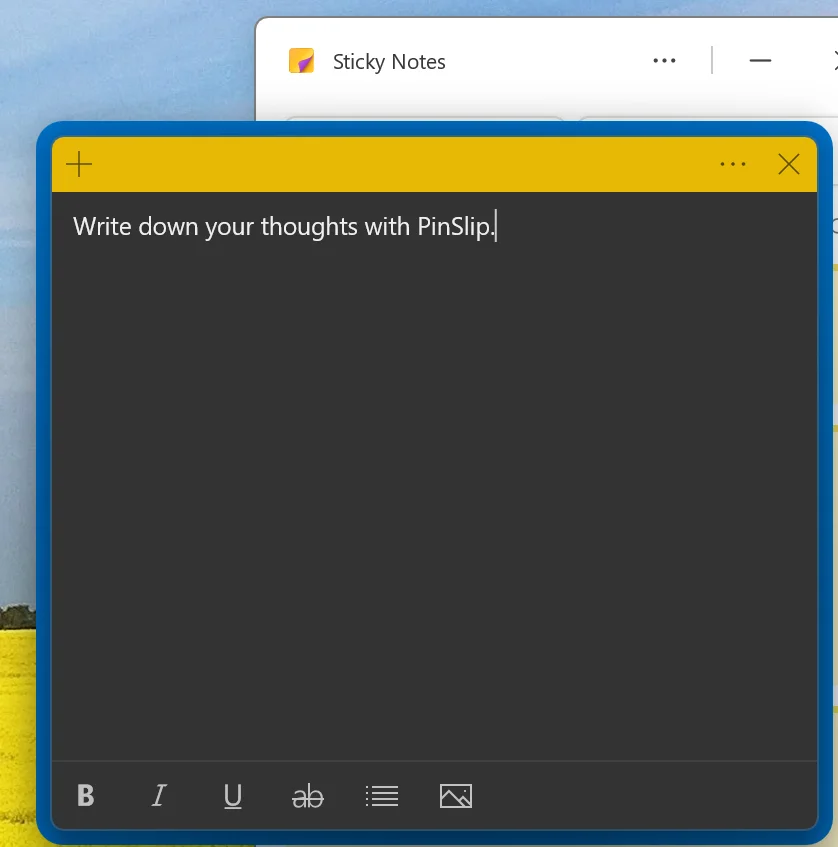
By default, a colored border appears around the pinned window to indicate that Always On Top is active.
You can now switch to another application while keeping your note visible.
Step 5: Unpin the Window
To turn off Always On Top, select the pinned window and press:
Win + Ctrl + T
The window will return to its normal behavior.
Why Use PowerToys?
PowerToys has several advantages:
Completely free and open source.
Developed and maintained by Microsoft.
Works with many Windows applications, not just sticky notes.
Supports a configurable keyboard shortcut.
Can display a visible border around pinned windows.
Doesn't require you to change your existing note-taking app.
Limitations of PowerToys
PowerToys is a general-purpose window management utility, not a dedicated sticky notes app.
It can keep windows visible, but it doesn't add sticky-note-specific features such as Markdown editing, magnetic snapping, note organization, or Git synchronization.
Some applications using special window modes, elevated permissions, or exclusive fullscreen behavior may also prevent the feature from working as expected.
If you only need to pin an existing window, PowerToys is an excellent solution.
But if you regularly work with several desktop notes, a dedicated sticky notes application may offer a better experience.
Method 3: Use PinSlip for Always-on-Top Desktop Sticky Notes
If you use sticky notes throughout the day, keeping a window on top may be only part of what you need.
You might also want to arrange several notes together, collapse them when they're not needed, and use Markdown to organize your tasks.
That's where a dedicated desktop sticky notes app can help.
PinSlip is a free, open-source sticky notes application for Windows, macOS, and Linux.
It supports always-on-top notes along with magnetic snapping, collapsible windows, Markdown editing, and local-first storage.
Editor's note: PinSlip is developed by the team behind this website. We've included Microsoft Sticky Notes and PowerToys as alternative solutions so you can choose whichever method works best for you.
Step 1: Download and Install PinSlip
Visit the official download page:
Choose the Windows version and install the application.
Step 2: Create a Sticky Note
Open PinSlip and create a new note.
Add the information you want to keep visible.
For example:
Today's tasks.
A short project checklist.
Meeting notes.
Useful commands or reference information.
Something you need to remember while working.
Step 3: Keep the Note Always on Top
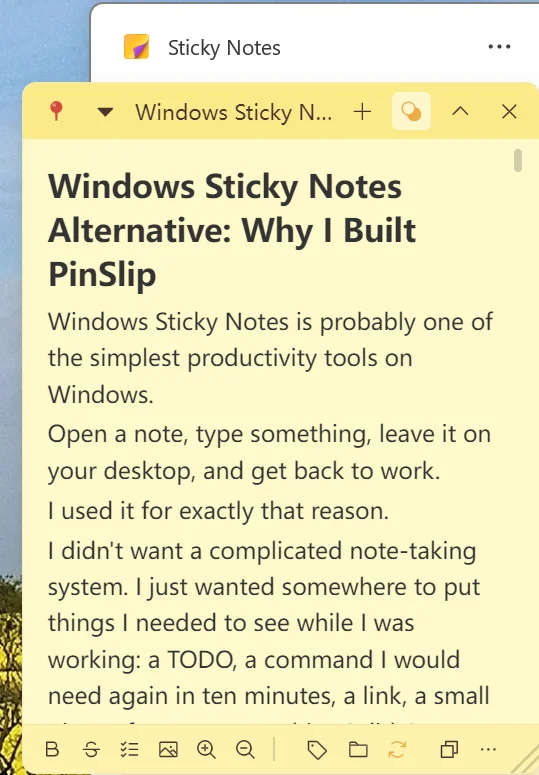
Use the note's pin control to keep it above other application windows.
Once enabled, the note stays visible while you switch between your browser, code editor, or other applications.
You don't need PowerToys or another window-pinning utility to use PinSlip's built-in pinning feature.
Step 4: Position and Resize Your Notes
Drag your note to a convenient location.
You might place it beside your browser, near your code editor, or in an unused corner of your screen.
PinSlip allows you to resize notes and arrange multiple notes on your desktop.
When notes move close to one another, magnetic snapping helps them align neatly.
More Than Just Always on Top
Keeping notes visible is useful, but PinSlip also provides features designed for people who use desktop notes as part of their daily workflow.
Collapse Notes to Save Screen Space
Sometimes you want a note nearby without having its entire contents visible.
PinSlip lets you collapse a note into a compact bar.
You can expand it again whenever you need to read or edit the content.
This is particularly useful when working on a smaller laptop screen.
Arrange Multiple Notes with Magnetic Snapping
If you work on several tasks or projects, you may want multiple notes visible at once.
PinSlip's magnetic snapping helps align nearby notes, making it easier to arrange them into organized groups.
Instead of scattering notes randomly across your desktop, you can keep related information together.
Write Notes with Markdown
PinSlip supports WYSIWYG Markdown editing.
You can use headings, bold text, strikethrough, checklists, and images directly inside your notes.
This makes it useful for structured tasks, technical notes, and project planning.
Keep Your Notes in Local Files
PinSlip follows a local-first approach.
Your notes are stored as ordinary Markdown files in a directory you choose.
You can access those files using other Markdown-compatible editors, such as VS Code or Obsidian.
Sync Notes with Your Own Git Repository
If you work across multiple computers, PinSlip also supports Git-based synchronization.
You can connect your notes to a private GitHub, GitLab, or another compatible Git repository.
This requires some initial configuration, but it gives you control over where your notes are stored and synchronized.
Let AI Assistants Work with Your Notes
PinSlip includes an MCP Server that can connect to compatible AI assistants.
When enabled and configured, an AI assistant can use the available tools to search, read, create, and update your notes.
For example, you could ask an assistant to find project notes or create a new task checklist.
PinSlip itself doesn't include a built-in AI model. The integration requires a compatible external AI client.
When Should You Use PinSlip?
If you only want to pin one existing application window, Microsoft PowerToys may be the simplest solution.
If you only need a few basic notes, the newer Microsoft Sticky Notes may already be enough.
But if you regularly use multiple sticky notes, want Markdown editing, or prefer keeping your data in local files, PinSlip is worth trying.
It's particularly useful for developers, researchers, designers, and anyone who wants important notes to remain visible while working.
Quick Comparison: Which Method Should You Choose?
All three methods can help you keep notes visible, but they solve slightly different problems.
Method | Best For | Main Advantage | Limitation |
|---|---|---|---|
Microsoft Sticky Notes | Basic note-taking | Built-in pinning in the newer version | Requires the newer Sticky Notes experience |
Microsoft PowerToys | Pinning existing application windows | Works with many different apps | Doesn't add note-specific features |
PinSlip | Daily desktop note workflows | Always on top, snapping, collapsing, Markdown | Requires installing a separate app |
Our recommendation:
Start with the newer Microsoft Sticky Notes if you only need to keep a simple note visible.
Use PowerToys if you're using the classic Sticky Notes app or want to pin other Windows applications.
Choose PinSlip if you want more flexible desktop notes with Markdown, magnetic snapping, collapsible windows, and additional options for synchronization and AI integration.
Looking for more desktop note-taking options? Read our comparison of the best free desktop sticky notes apps for Windows.
Troubleshooting: Why Won't My Sticky Notes Stay on Top?
If you've tried one of the methods above and your notes still disappear behind other windows, check these common issues.
1. You're Using the Legacy Microsoft Sticky Notes App
The older standalone Microsoft Sticky Notes app doesn't include the same native window-pinning feature as the newer OneNote-based experience.
If the pin button is missing, confirm which version you're using.
You can also use PowerToys to pin the classic application window.
2. PowerToys Always On Top Is Disabled
If the Win + Ctrl + T shortcut doesn't work, open PowerToys settings and confirm that Always On Top is enabled.
Also check whether you've changed the default shortcut.
3. Another Application Is Using the Same Shortcut
Some applications use global keyboard shortcuts.
If another tool has registered the same key combination, it may interfere with PowerToys.
Try assigning a different shortcut in PowerToys settings.
4. The Window Is Running with Elevated Permissions
PowerToys may have difficulty pinning certain applications running with administrator privileges if PowerToys itself isn't running with the necessary permissions.
Check the PowerToys documentation before changing application permissions.
5. You're Using a Fullscreen Application
Always-on-top behavior doesn't guarantee that a note will appear above every fullscreen game, exclusive fullscreen application, or system interface.
Some programs use special display or window modes that can override normal desktop window layering.
If possible, try switching the application to a normal or borderless windowed mode.
6. You Confused "Pin to Taskbar" with "Always on Top"
These are two different Windows features.
Pin to Taskbar places an application's icon on your taskbar so you can launch it quickly.
Always on Top keeps an application's window visible above other regular windows.
Pinning Sticky Notes to your taskbar won't stop its note windows from being covered by other applications.
If your goal is to keep notes visible, you need an actual Always on Top feature.
Frequently Asked Questions
Can you keep sticky notes always on top in Windows 11?
Yes.
The newer Microsoft Sticky Notes experience supports pinning popped-out notes.
You can also use Microsoft PowerToys or a third-party sticky notes app such as PinSlip.
Why doesn't Microsoft Sticky Notes have an Always on Top button?
You may be using the legacy standalone Sticky Notes application.
The newer OneNote-based Sticky Notes experience includes a pinning feature, but the classic application doesn't offer the same native functionality.
Check which version is installed and whether the newer experience is available on your computer.
Is there a keyboard shortcut to keep any window on top in Windows?
Windows doesn't provide one universal built-in shortcut for pinning every application window.
However, Microsoft PowerToys adds an Always On Top feature.
By default, you can press Win + Ctrl + T to pin or unpin the active window.
How do I keep Notepad always on top?
You can use Microsoft PowerToys.
Open Notepad, select its window, and press Win + Ctrl + T after enabling Always On Top in PowerToys.
Can an always-on-top window stay above fullscreen games?
Not necessarily.
Some fullscreen games and applications use special display modes or window layers that may prevent normal always-on-top behavior.
For reliable results, use regular application windows whenever possible.
Can I keep multiple sticky notes always on top?
Yes.
PinSlip supports multiple desktop notes with built-in pinning, magnetic snapping, and collapsible windows.
You can also use PowerToys to pin multiple supported application windows individually.
What's the best free sticky notes app with Always on Top?
If you need simple notes, the newer Microsoft Sticky Notes is a convenient free option.
If you want to pin an existing application, PowerToys works well.
If you want a dedicated sticky notes app with Markdown editing, local storage, and flexible note arrangements, PinSlip is another free and open-source option.
Final Thoughts
Keeping notes always on top in Windows is easier than it might seem.
If you're using the newer Microsoft Sticky Notes, you can pin individual note windows directly.
If you prefer the classic Sticky Notes app or want to keep other applications visible, Microsoft PowerToys provides a free keyboard shortcut for window pinning.
And if sticky notes are an important part of your daily workflow, a dedicated application such as PinSlip offers additional features like collapsible notes, magnetic snapping, Markdown editing, and local-first storage.
The best solution isn't necessarily the one with the most features.
It's the one that keeps important information visible without getting in the way of your work.
Keep Your Notes Visible with PinSlip
PinSlip is a free, open-source desktop sticky notes app for Windows, macOS, and Linux.
Keep important notes on top, organize them with magnetic snapping, and use Markdown to manage your tasks and ideas.
Explore Git synchronization and AI integration whenever you need more advanced workflows.